Contacts: every client and owner in one place
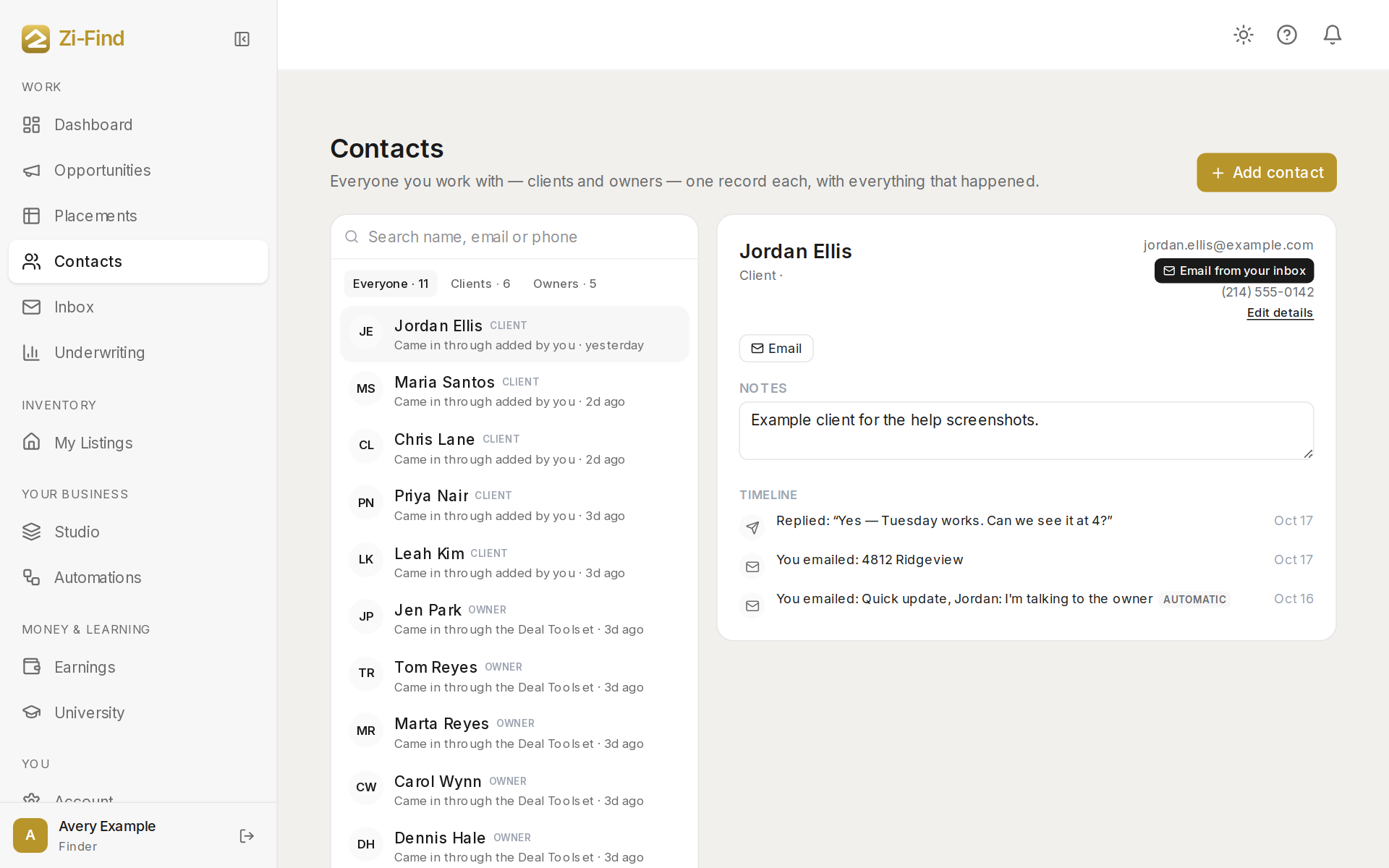
Contacts is everyone you work with — clients and owners — one record each, with everything that happened in one timeline. Most people arrive on their own as they use your flows; you can add the rest by hand.
How people get into Contacts
Contacts fill themselves in from:
- Your flow — anyone who fills it in.
- Marketplace access — a client who pays and gets access.
- A booked call.
- An owner you add on the Properties tab of Placements.
- An operator request you took on from Zi-Find's network.
If the same person comes through two doors, they're still one contact. We match by email first, then phone.
Add a contact by hand
- Click Add contact.
- Enter their name and details, and choose They are: A client or An owner.
- Click Add contact.
What's on a contact
Click anyone in the list (or search by name, email or phone) to open their record:
- Looking for — their criteria, if they've told you.
- Notes — private to you. Your contact never sees them.
- Timeline — newest first: forms, signatures, payments, properties you picked for them, questions they asked, emails and calls. Entries sent by your automations are labelled automatic.
From a contact, Email from your inbox starts a message in your Inbox, and from their placement card you can jump back to the contact with Open contact.
Email from your Inbox, not your mail app
Use Inbox to email a contact rather than your personal mail app. That way their reply comes back into the thread and onto their timeline, and nothing about the client lives in two places. See Your Inbox.
Good to know
- Contacts is part of Finder Pro+.
- Operators who reached you only through the Zi-Find network are contacts too. Your own clients only ever hear from your email address. See Why client email comes from your own domain.
- Every contact can have a placement on your Placements board. See The placements board.
Need more help?
Customers get support inside their account. Sign in, then open Help or the chat bubble in the corner.