Set up your white-label business: the Pro+ checklist
After you upgrade to Finder Pro+, your Account page shows a checklist called Your white-label setup. It has six steps, and each one ticks itself only when the real thing is done — a saved logo, a verified email, a published flow — not when you click a button.
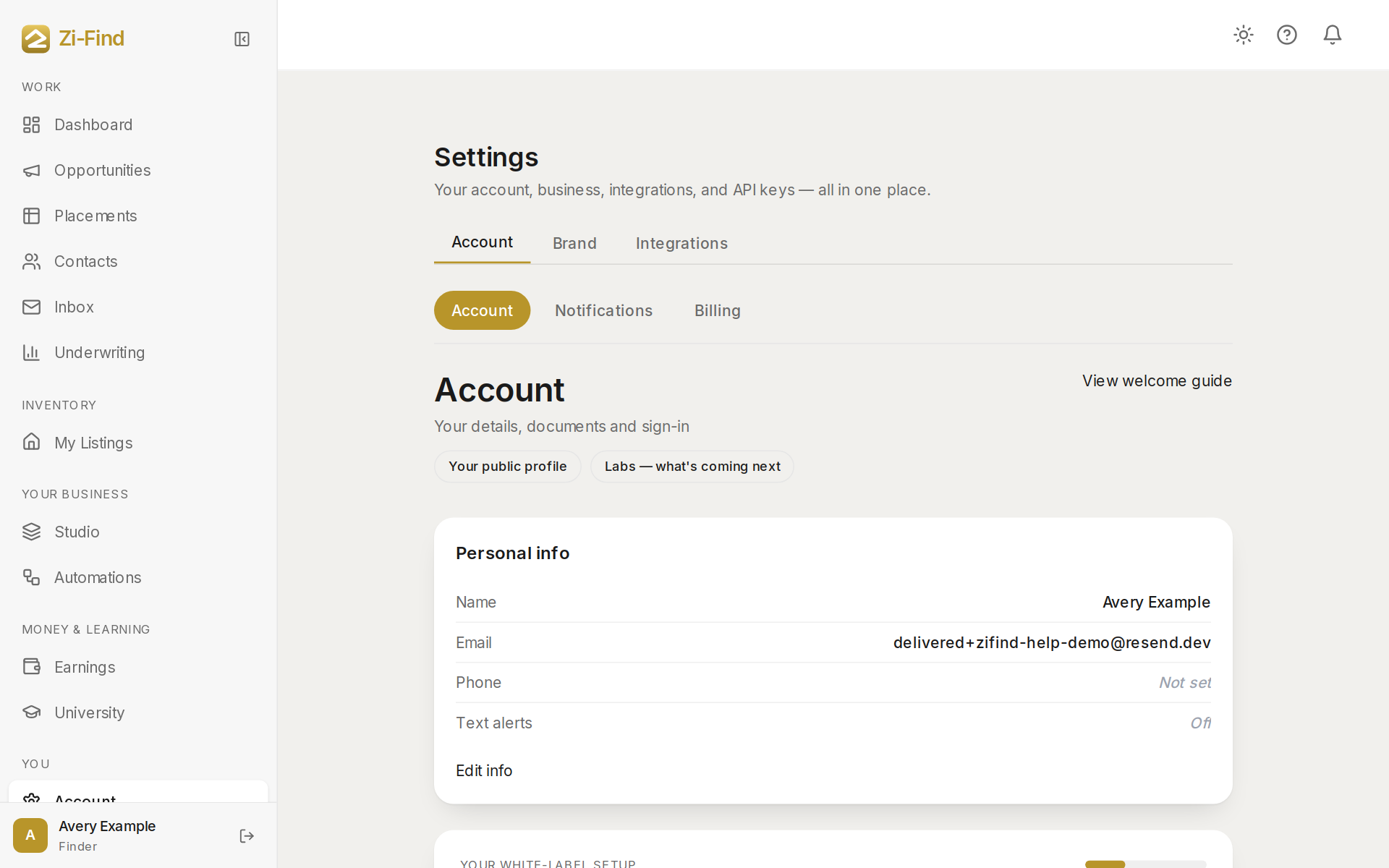
Where to find it
- Sign in and click Account in the sidebar (under You).
- On Pro+, Account opens your Settings hub with three tabs: Account, Brand and Integrations.
- Scroll down the Account tab to Your white-label setup. It shows how many steps are done, and a link beside each step.
The same steps also appear as a banner on your finder dashboard until you're finished.
The six steps
- Your brand — your logo, business name and colour, which your clients see on every page. Set it in Studio → Brand (or the Brand tab of Settings). See Your client site, brand and domain.
- Connect your domain — put your client links on your own web address. Until you do, you have a free address that already carries your brand. Counts as done once the domain is verified and connected.
- Get paid — connect your own Stripe account so clients pay you directly. The money never touches Zi-Find. See Get paid by your clients.
- Send from your domain — connect your own email sending (Resend). This one is required: until it's connected, your clients get no agreement copy and no marketplace sign-in. See Connect your own email.
- Publish your flow — build the intake your clients fill in, then publish it to get the link you send. See Build your client flow.
- Your first client — send your link to one person. When they fill it in, they show up in your client list and in Contacts.
The fastest route
Most finders do it in this order:
- Open Studio and Use this kit on one of the kits. It sets up a draft site, flow, brand and client marketplace in one go. See Studio and kits.
- Go to Account → Integrations and connect Resend, then Stripe.
- Back in Studio, fill in your price and wording on the flow, publish it, and publish your site.
- Send your flow link to your first client.
Good to know
- If a step says Soon instead of a link, it can't be done yet for a reason on our side (for example, Stripe payments being switched on). You don't need to do anything.
- Steps read live data. If a save failed, the step stays unticked — that's on purpose.
- Nothing in a kit goes live by itself. You publish your site and your flow when you're ready.
I need a hand with setup. Who can help?
Sign in and open Help, or use the chat bubble in the bottom corner.
Was this helpful?
Need more help?
Customers get support inside their account. Sign in, then open Help or the chat bubble in the corner.