Managing your account settings
Your settings live on the Account page, which you open from Account at the bottom of the sidebar. It is split into tabs, and the tabs you see depend on your role.
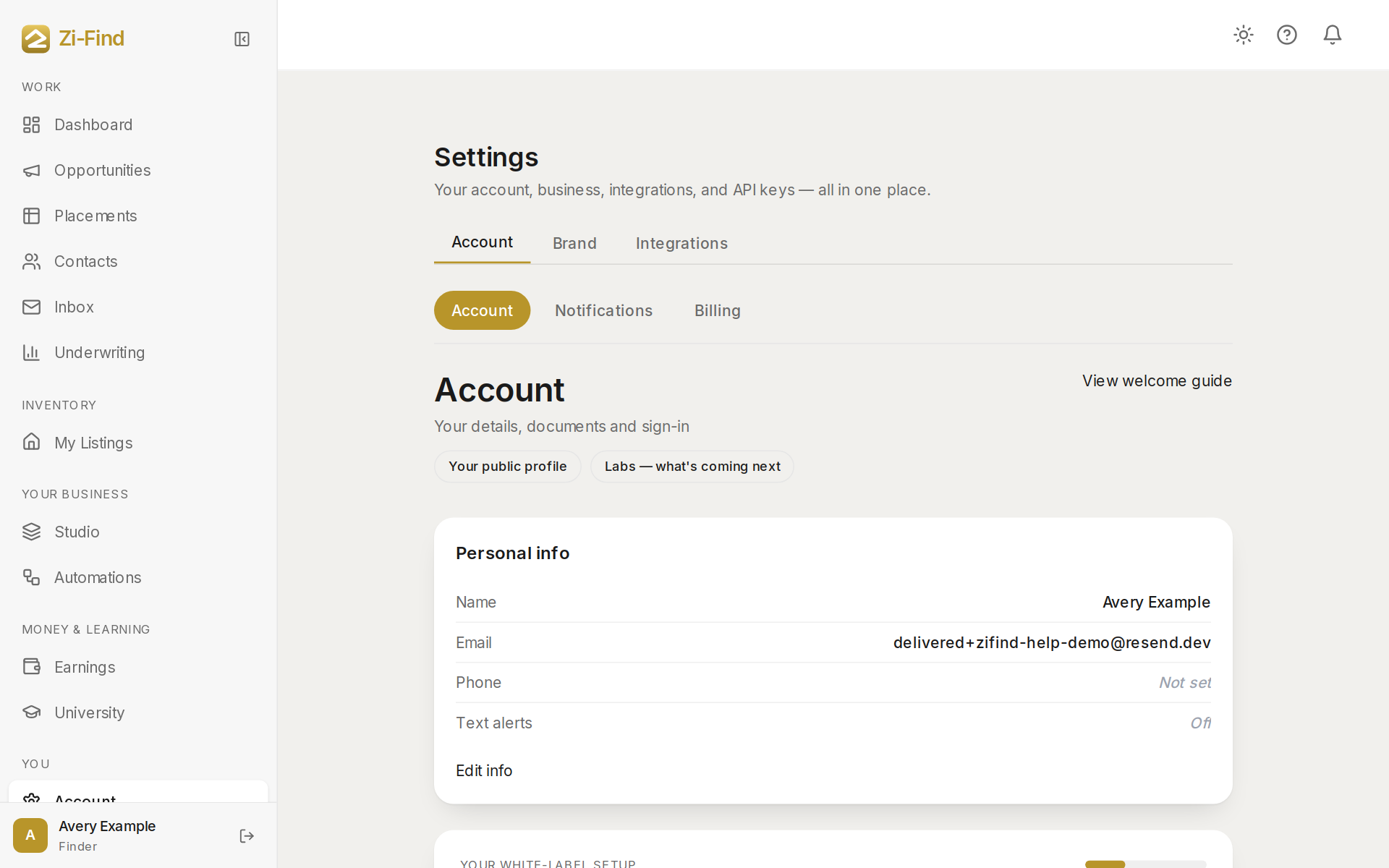
The tabs
| Tab | What it holds | Who sees it |
|---|---|---|
| Account | Your details, documents and sign-in | Everyone |
| My criteria | What you are looking for, and what a deal costs you | Operators |
| Notifications | What we email and text you about | Operators, finders, realtors, coaches |
| Billing | Your plan, payment method and invoices | Operators, finders, realtors |
Owners, co-hosts and vendors see a single Account page without tabs. Co-hosts and vendors edit their public profile from My profile in the sidebar.
Update your personal info
- Open Account and stay on the Account tab.
- In the Personal info card, click Edit info.
- Change your First name, Last name or Phone.
- Tick or untick the text-message box: "Text me confirmations when a submitted property is approved — reply STOP to opt out anytime."
- Click Save. You will see Saved when it goes through.
Phone numbers need 7 to 15 digits. Your email address cannot be changed from this card; to change it, open Help or use the chat bubble in the bottom corner.
Documents
If Zi-Find has shared an agreement or document with your account, it appears on the Account tab. Open it, read it, and click I've reviewed this to acknowledge it.
Operator criteria
On My criteria, operators describe the rental strategy they run and the numbers they use to judge a deal. Keeping this current helps you and the network focus on properties that actually fit.
Billing
The Billing tab shows:
- Current plan with its price, status and next billing date.
- Payment method, with Manage payment method to update your card. See Updating your payment method.
- Billing history, where you can download each invoice.
- Change plan (upgrades), Cancel subscription and Pause subscription instead?, plus a Change to a lower plan link at the bottom. See Changing your plan and Cancelling your subscription.
- A banner when a plan change is scheduled, with Keep my current plan to undo it.
Finders and realtors also see their listing count against their plan's limit on this tab.
Delete your account
You can delete your account yourself from the Danger zone card at the bottom of the Account page.
- Click Delete account.
- Read what will happen, then type DELETE in the box.
- Click Delete my account.
Deletion is immediate and cannot be undone:
- You are signed out and cannot sign in again.
- Your listings come down. A listing nobody has asked about is deleted. One an operator has messaged you about is taken off the marketplace so their conversation stays intact.
- Your name, email, phone number and photo are removed from your account.
- Receipts and billing records held by our payment processor are kept, as the law requires.
If you still have a subscription that will bill again, deletion is refused and the dialog offers Cancel my subscription. Cancel first, then come back. A subscription already set to end at the close of your billing period does not block deletion.
Good to know
- Your name, phone and notification settings apply across every role you hold.
- If your sidebar lets you switch workspaces, the account page follows the workspace you are in, so an operator and a finder view can show different tabs.
- Account and security emails, such as login links and receipts, are always sent and cannot be switched off.
FAQ
How do I delete my account?
Open Account, scroll to Danger zone, click Delete account and type DELETE to confirm. Cancel any live subscription first.
Where do I set my password?
Use Forgot password on the sign-in page to set or reset it. See Signing in.
Need more help?
Customers get support inside their account. Sign in, then open Help or the chat bubble in the corner.